
CSS #
Create a CSS file in your theme folder and add the following content.
.wp-block {
    max-width: 1280px;
    margin: auto;
}
functions.php #
Add the following content to your theme’s functions.php file.
function add_gutenberg_editor_style() {
    wp_register_style(
        ‘editorCSS’,
        get_stylesheet_directory_uri().‘/assets/css/editor.css’
    );
    wp_enqueue_style(‘editorCSS’);
}
add_action( ‘enqueue_block_editor_assets’, ‘add_gutenberg_editor_style’ );
get_stylesheet_directory_uri().‘/assets/css/editor.css’ is the URL of the CSS file you just created.
get_stylesheet_directory_uri() returns the URL relative to the theme’s root directory.
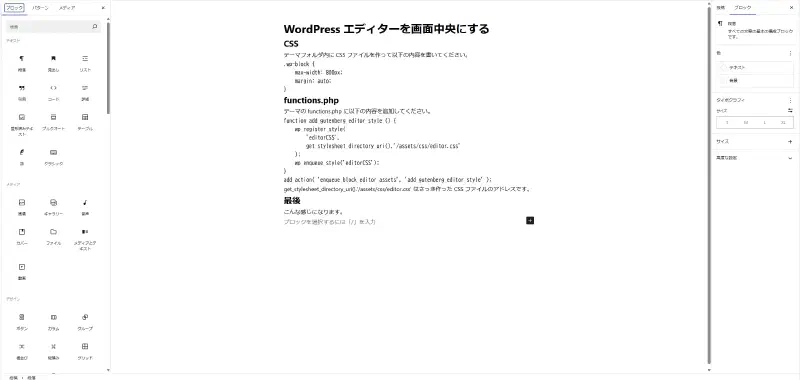
Result #
It will look something like this.
Limiting It to the Post Editor Only #
After performing the steps above, the styles for all pages—especially the site editor screen—will also be changed.
If you want to center the screen only when editing a post, modify the CSS as follows:
.post-type-post .wp-block {
    max-width: 1280px;
    margin: auto;
}
Doing this will apply the styling only to the post editor screen.
If you want to apply this to the page screen as well, use the following CSS:
.post-type-post .wp-block {
    max-width: 1280px;
    margin: auto;
}
.post-type-page .wp-block {
    max-width: 1280px;
    margin: auto;
}